The check information is displayed when you select a check on the Checks (Monitoring) page. Detailed information about the selected check is shown here.
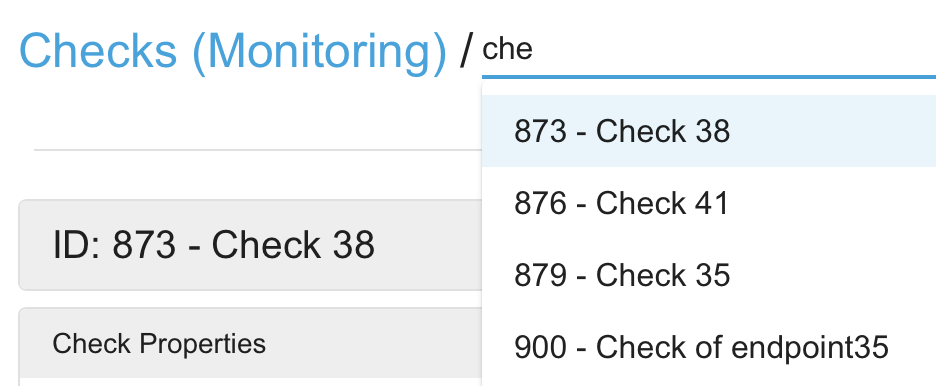
The check shown here can be selected using the dropdown list Checks (Monitoring). The selection can be narrowed down by entering a search string. |
|
The timestamp indicates the last update of the checks list in the table. A click on updates the list. |
|
New checks can be added using the + Add check button. This opens the respective dialogue. |
|
A click on Delete check deletes this check from the icom Connectivity Suite - VPN.
The check information is distributed across various fields.
Check Properties
The most important properties of this check are listed in the Check Properties field.
The name of this check is displayed under Name; it can be changed by clicking on Change name.
The Target Name field displays the name of the device being monitored by this check.
The Type field shows the type of this check; it can be changed by clicking on .
The IP address of the endpoint being monitored by this check is displayed under IP in VPN.
The Interval/delay field shows the time intervals at which the check takes place; it can be changed by clicking on .
The Retry Interval field shows the time intervals at which the check is carried out after a check has failed; this interval is usually shorter than the Interval / Delay; it can be changed by clicking on .
The Maximum check attempts field shows after how many checks the normal check interval is resumed; the setting can be changed by clicking on .
The Basic authentication credentials field displays any credentials entered for this check; these can be changed by clicking on .
Notification Properties
The most important information regarding the notification options are listed in the Notification Properties field.
The Status indicates the last status of this check; the following states are possible:
OK: The last check was successful.
Warning: The last check was successful, but the requests were either delayed (packet round-trip time ≥ 2500 ms) or not fully responded to.
Pending: Frequent state changes have been observed when the detection of stability issues is enabled (see Confguring the check options).
Error: The last check was not successful.
The Description field displays the description of the check; the content of this field is also included in the error report; it can be edited by clicking on .
The Recipients section displays the email addresses to which the error reports for this check will be sent; these can be changed by clicking on .
The Notify on check results field indicates the type of check results being sent:
ERRORS only: only errors are sent; no recovery notifications are sent
Disabled: both error and recovery notifications are sent
The Message Content field shows the scope of the notifications:
Notification description only: only the description of the check is sent without a detailed error report
Disabled: a description of the check and a detailed error report will be sent
Activities
All activities, i.e. changes related to this check, are listed in the Activities field. For details in the table refer to Activities.
The visible columns of the list can be set by a click on Columns. A Filter enables to filter the list for the desired content. Changes to columns and applied filters will be reset the next time the page is loaded.
Export allows to export the visible content of the list after applying the filters to a CSV file (saved in the browser's download directory) or to print it. The name of the CSV file contains the time at which the data was generated and does not necessarily correspond to the time of export.