The firmware deployed in an on-premises installation of icom Router Management must be managed by the operator of the installation themselves. To this end, icom Router Management – Cloud allows packages containing different firmware versions to be downloaded. Using these packages, all the firmware packages they contain – in both 32-bit and 64-bit versions – can then be uploaded to icom Router Management – On-Premises in one go.
Please note!
These packages are intended solely for the exchange of firmware packages from icom Router Management – Cloud to icom Router Management – On-Premises and must only be used for this purpose.
Log in to your icom Router Management - Cloud account and navigate to the Download section.
Change to the icom OS Firmware tab.
Select the firmware versions to be included in the import packets and click on Select action → Download firmware for self-hosted iRM.
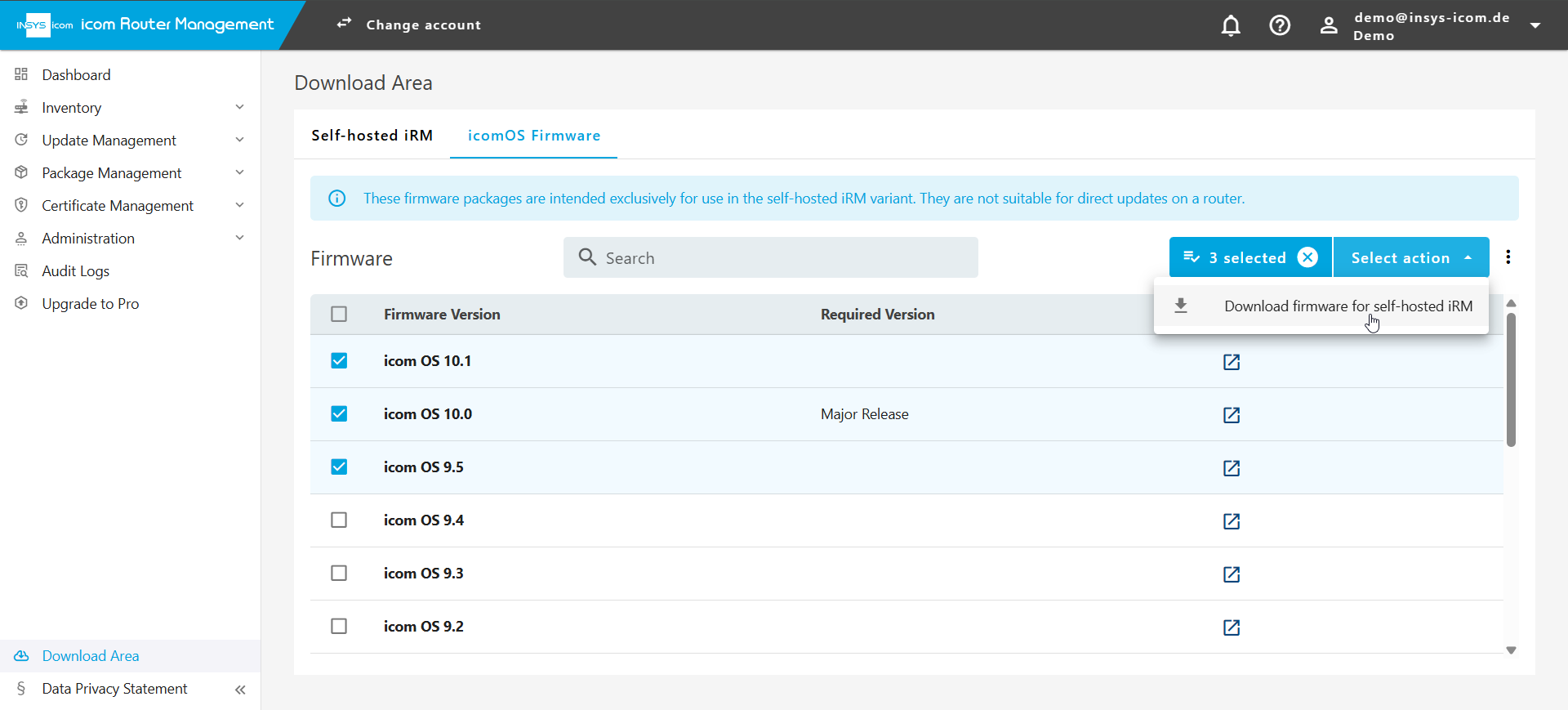 The import packets are being created.
Make a copy of the checksums for the integrity check.
.png)
Click on OK.
Change to your On-Premises installation of the icom Router Management and open the System Administration → Firmware Management page.
Click on Import icom OS firmware and select the import packets to be imported.
.png)
Once the import is complete, the firmware packets will be available in your on-premises installation of icom Router Management.