Various routers of INSYS icom provide the option to set up a redundant WAN connection (secondary or fallback connection) to increase the availability.
This Configuration Guide shows how to configure a redundant WAN connection.
Situation
An INSYS router has a primary WAN connection over Ethernet, for example to an Internet router. It is necessary to configure a secondary WAN connection that can be used in case the primary WAN connection fails. This can be realised using the connection check function.
Solution
It is prerequisite that you have access to the web interface of the router and the router has been commissioned for Internet access via WAN over Ethernet using the Startup Wizard. The Startup Wizard configures a WAN interface and a local LAN network for your router. You’ll now add an additional Internet connection (secondary WAN connection) and configure the connection check of the primary WAN connection. A WAN chain defines a WAN connection. It is the sequential arrangement of interfaces that defines the establishment of a WAN connection.
Please note!
Depending on the router, a wide variety of combinations of primary and secondary WAN connections are possible, including connections to alternative cellular providers or satellite connections in the event of a failure of the primary WAN connection—for example, due to a provider failure. The configuration is similar to the example configuration described in this Configuration Guide, which uses a primary Ethernet connection and a secondary cellular connection.
Our versatile routers and the wide selection of plug-in cards for modular routers enable the following redundancy combinations, among others:
Primary WAN connection
Secondary WAN connection
Supported by
Ethernet
Cellular
MOROS.neo-E.4G, MOROS.neo-EW.4G, MIRO, ECR-L, SCR-L, MRX.neo and MRX with MRcards MSI.5G, MSI.4G, PL, PLS, PL450 or PL450D
DSL
Cellular
MRX.neo and MRX with MRcard PD + MRcard MSI.5G, MSI.4G, PL, PLS, PL450 or PL450D
Cellular SIM1
Cellular SIM2
MOROS.neo-E.4G, MOROS.neo-EW.4G, ECR-L, SCR-L, MRX.neo and MRX with MRcards MSI.5G, MSI.4G or two of the MRcards PL, PLS, PL450 or PL450D
Only DSSS with MRcard MSI.5G and MSI.4G
Glass fiber
Cellular
MRX.neo and MRX with MRcard Fiber + MRcard MSI.5G, MSI.4G, PL, PLS, PL450 or PL450D
Please note for possible differences in the naming of the cellular interface!
The cellular interfaces have been renamed from
lteXtocellularXwith version icom OS 10.0. Depending on the version, the following description may therefore differ from your router. For security reasons, we recommend that you regularly update your router to the latest version anyway. See FAQ for more information.
Open the user interface of the router: https://insys.icom
Click on behind the LTE interface lte2 on the Network → Interfaces page to edit this LTE interface.
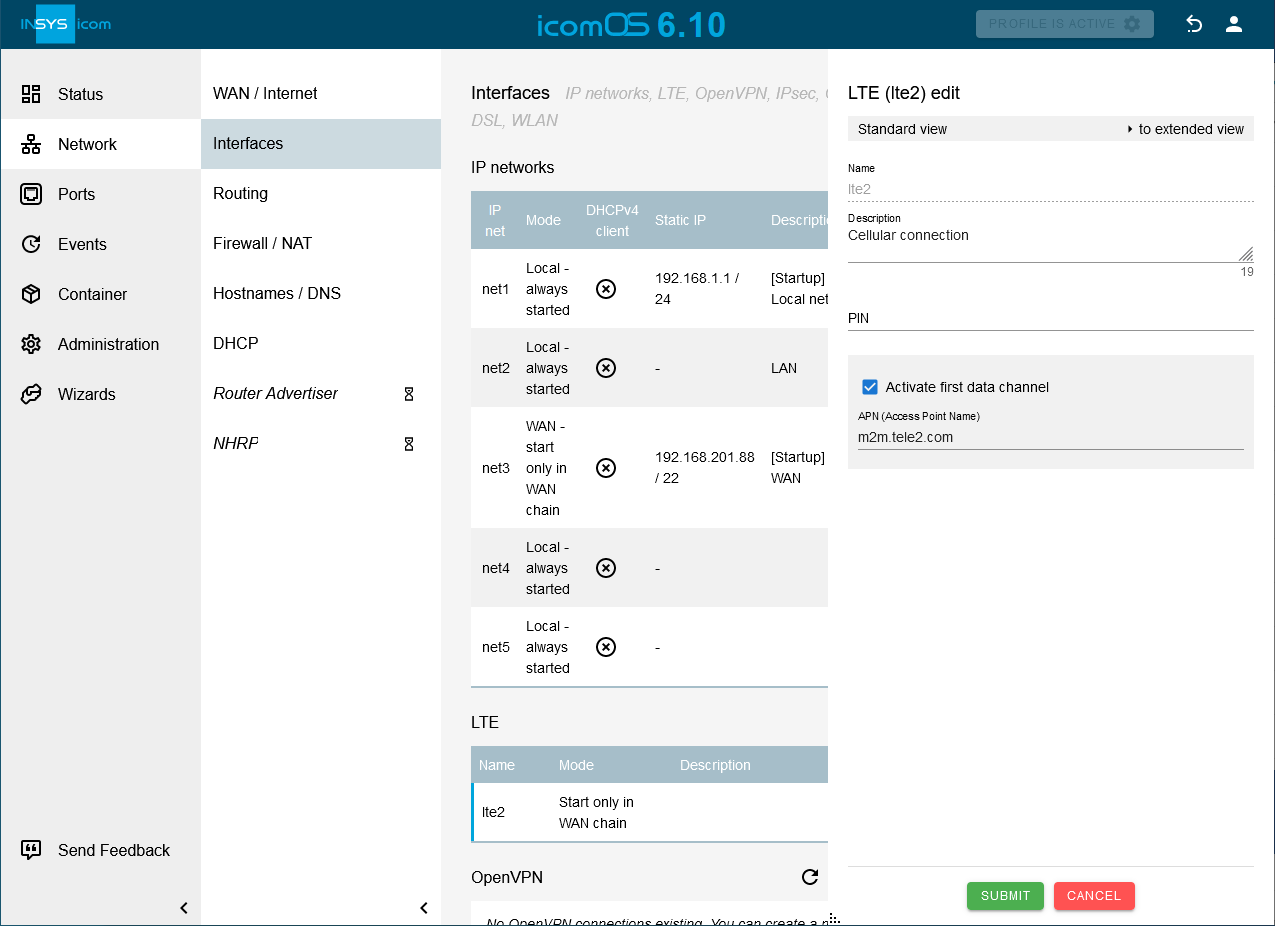
Enter a Description and the APN of your provider.
Click on SUBMIT.
Click on on the Network → WAN / Internet page to add a new WAN chain and enter a Description.
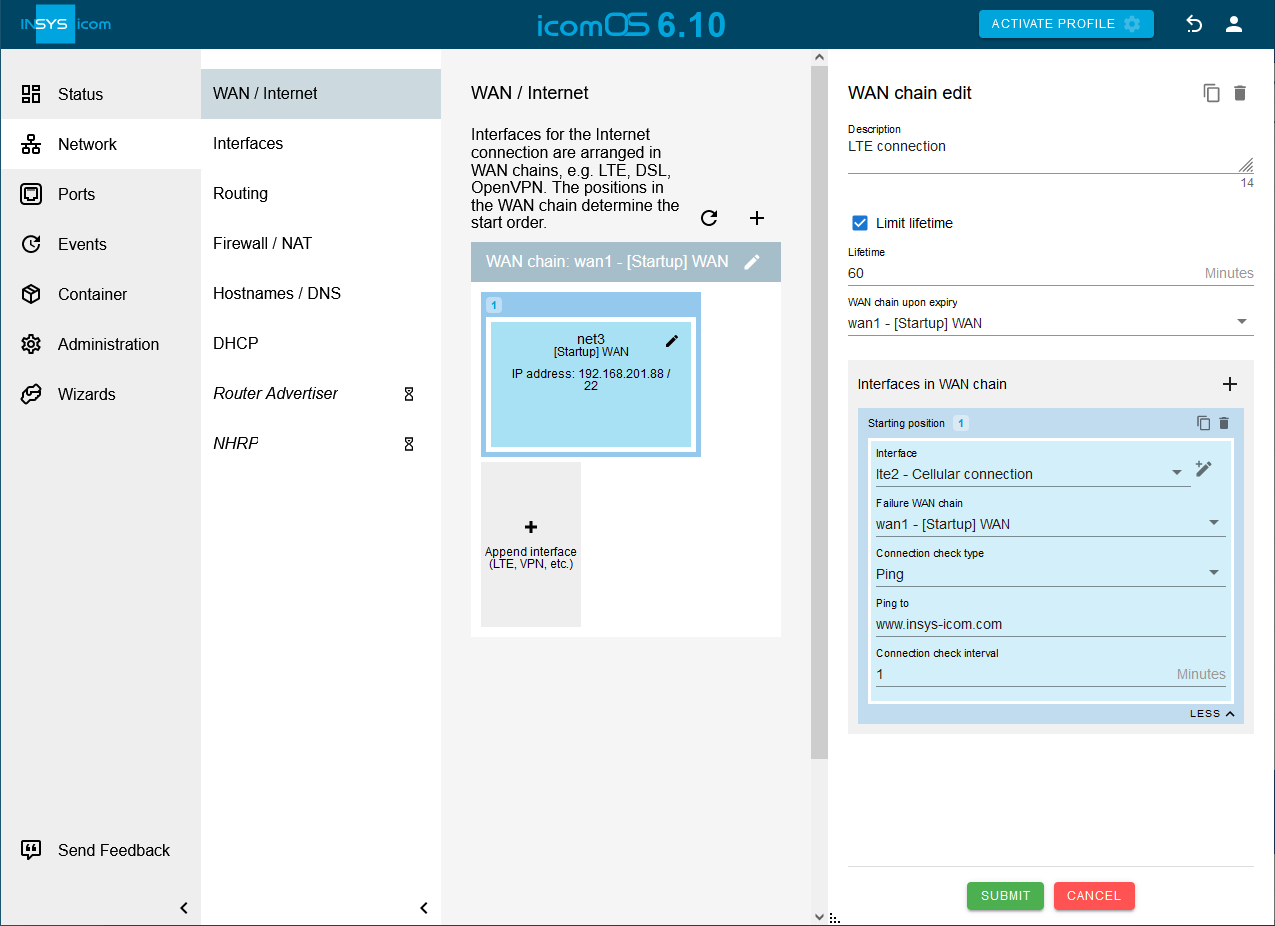
Check the option Limit lifetime, enter a lifetime for this WAN chain and select under WAN chain upon expiry wan1 as WAN chain.
Please note!
The WAN chain for the redundant connection to the secondary instance will be disconnected after the lifetime has expired and the WAN chain wan1 will be started, which is used to establish the connection to the normal WAN connection.
Click in the Interfaces in WAN chain section on and add above added LTE interface.
Click on MORE at the bottom of Interfaces in WAN chain and select the WAN chain wan1 under Failure WAN chain.
Select under Connection check type Ping, enter under Ping to e. g. www.insys-icom.com and enter a Connection check interval.
Click on SUBMIT.
Click on behind the WAN chain wan1 on the Network → WAN / Internet page to edit this.
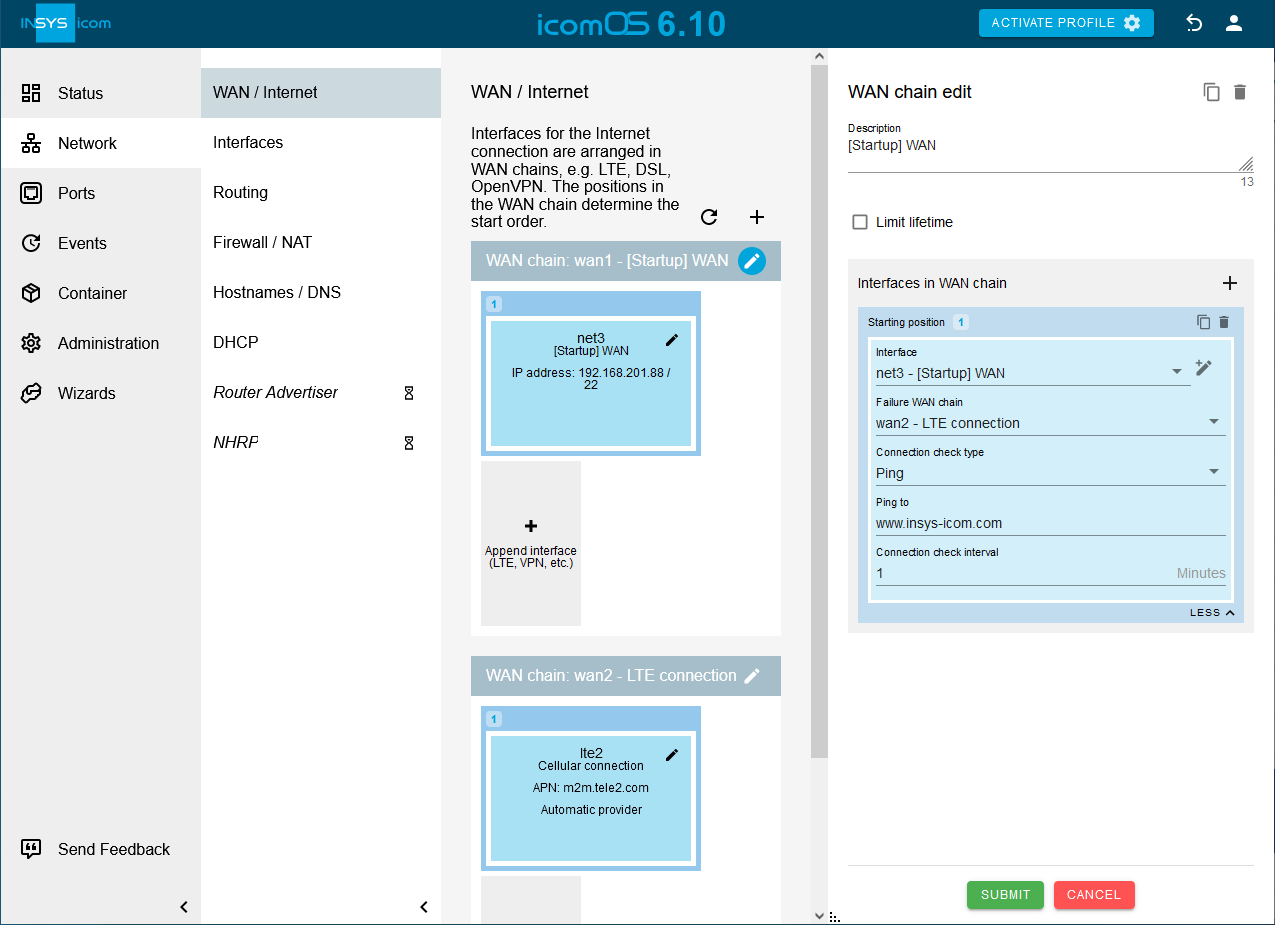
Click on MORE at the bottom of Interfaces in WAN chain and select the WAN chain wan2 under Failure WAN chain.
Select under Connection check type Ping, enter under Ping to e. g. www.insys-icom.com and enter a Connection check interval.
Click on SUBMIT.
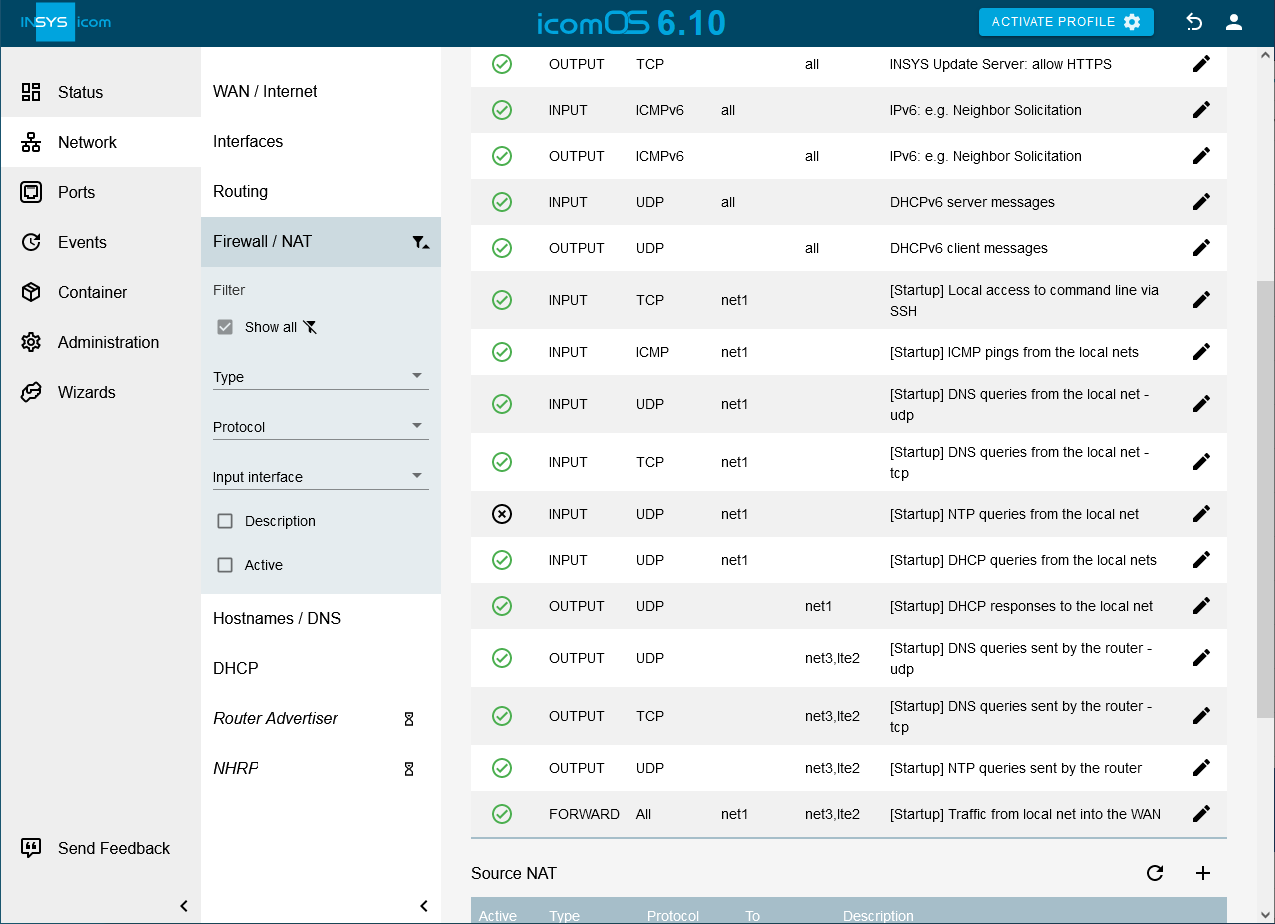
Click on the Network → Firewall / NAT page in the IP filter section on behind the OUTPUT rule [Startup] DNS queries sent by the router - udp and add above added LTE interface under Output interface.
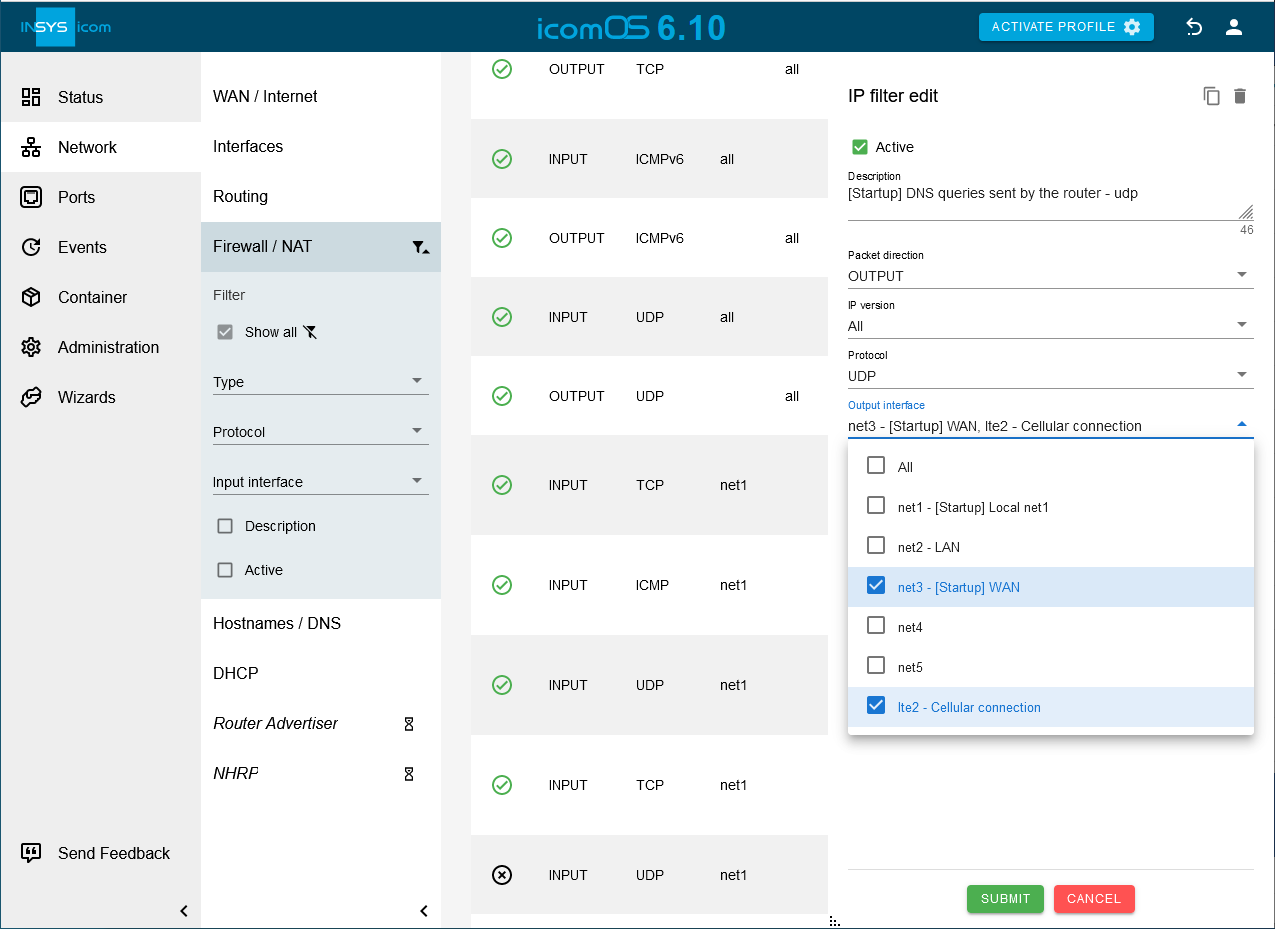
Click on SUBMIT.
Add the LTE interface to the output interfaces in the same way for the filter rules [Startup] DNS queries sent by the router - tcp, [Startup] NTP queries sent by the router and [Startup] Traffic from local net into the WAN, for which the interface net3 is also specified as the output interface.
Click on the Network → Firewall / NAT page in the the Source NAT section on behind the Masquerade rule [Startup] Masquerading for WAN interface and add above added LTE interface under Output interface.
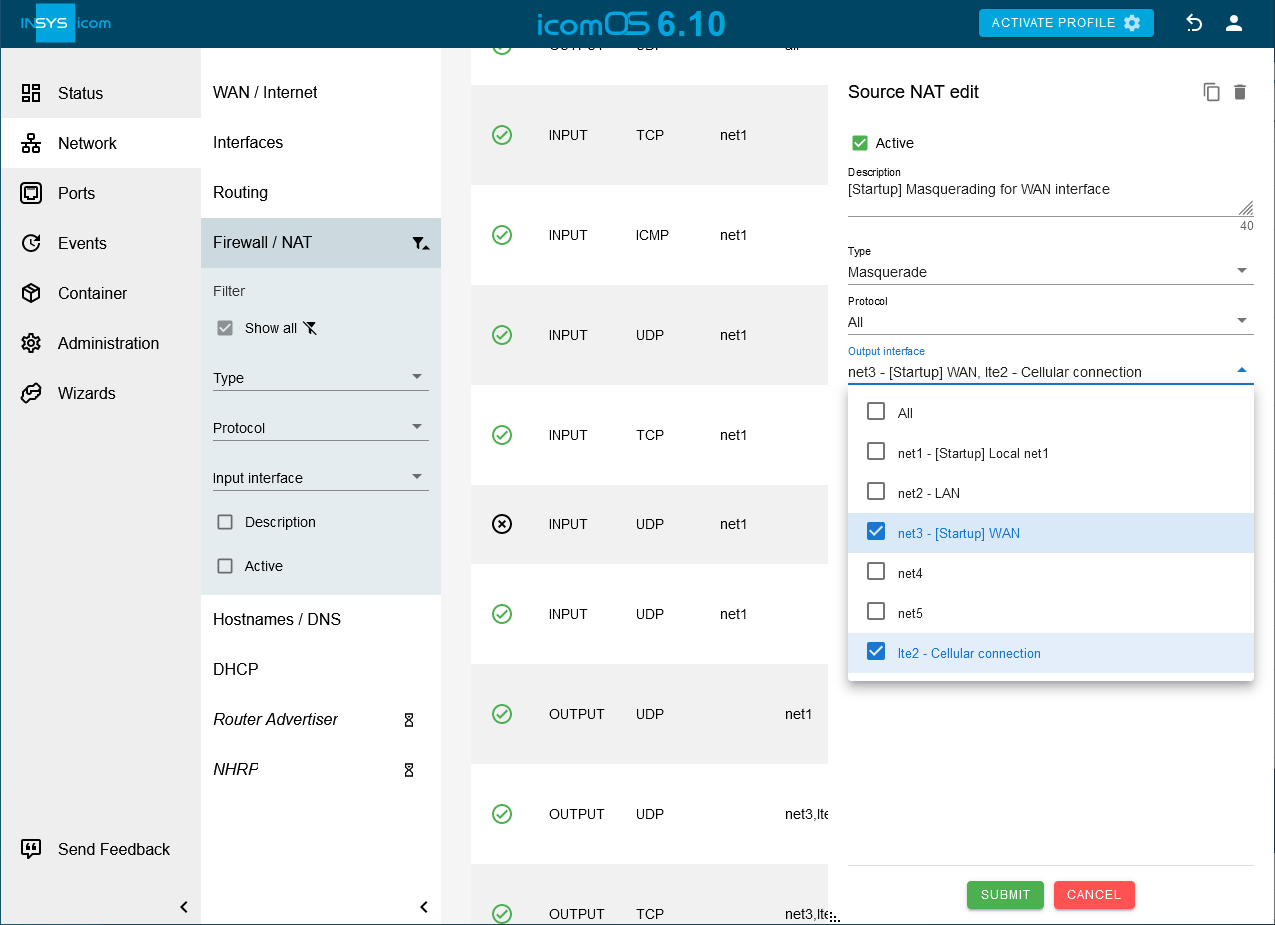
Click on SUBMIT.
Click on on the Network → Routing page in the Static routes section to add a new static route and enter a Description:
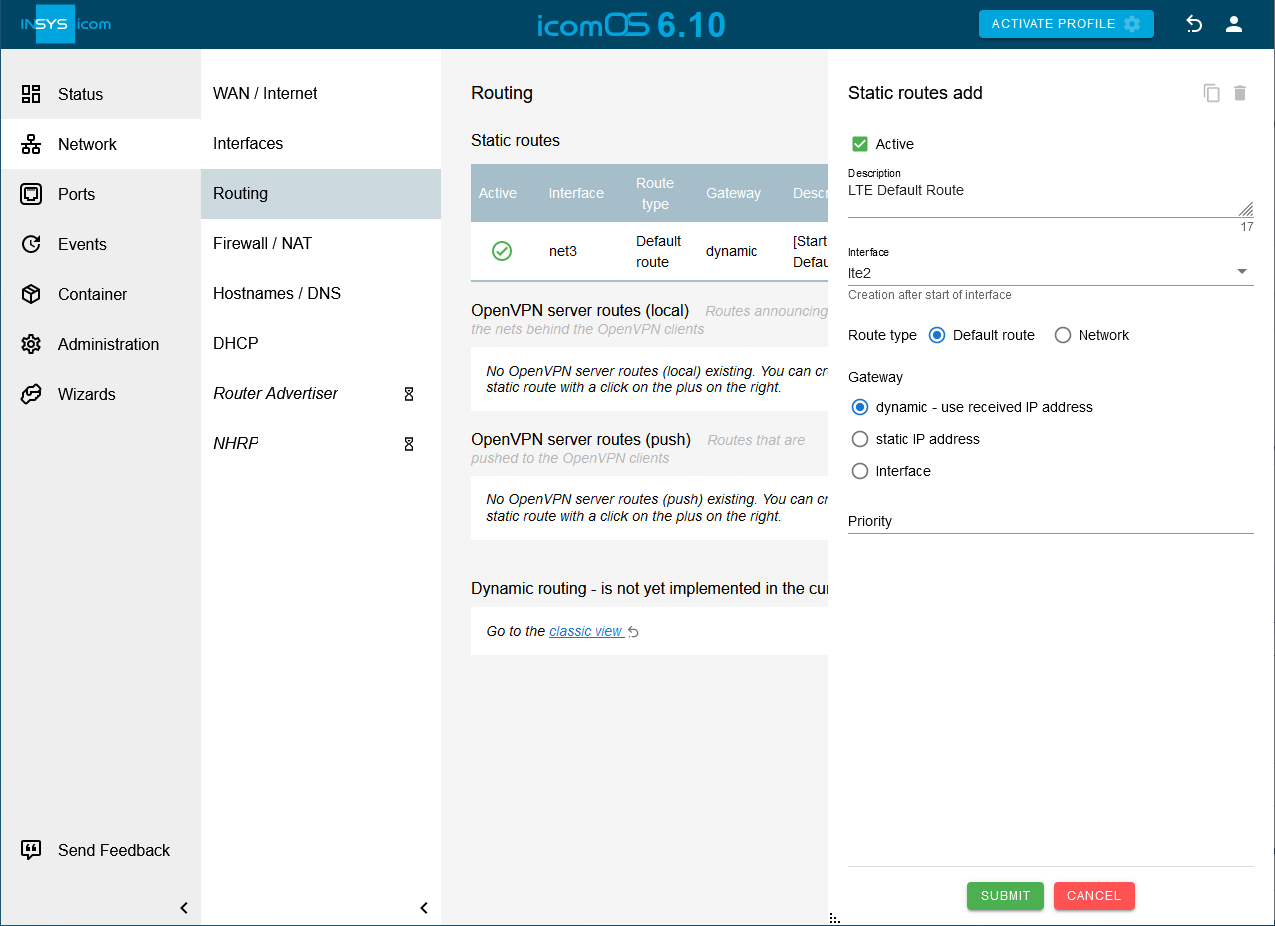
Select the LTE interface lte2 specified above under Interface and Default route as Route type.
Select dynamic - use received IP address under Gateway.
Click on SUBMIT.
Activate the profile with a click on ACTIVATE PROFILE .
Result testing
Open the
 Status → Dashboard page and observe the establishment of the WAN chain in the WAN chain section.
Disconnect the Ethernet cable used for the Internet connection in port 5 and wait for the connection check interval to verify that the WAN connection changes to the redundant WAN connection.
Reconnect the Ethernet cable to verify that the WAN connection changes back to the normal WAN connection after the lifetime of the redundant WAN connection has expired.
Troubleshooting
You can temporarily disable the IP filters for IPv4 on the Network → Firewall / NAT page in the Settings IP filter section to find out if incorrect filter settings are the cause of problems.
Observe on the
Status → Log view page which process might fail.