The icom Connectivity Suite - VPN allows you to organise devices with similar functions into groups in order to assign them common communication rules. The portal includes a group management feature for this purpose. The Groups menu lists all groups in a table. You can also add new groups with different communication rules here.
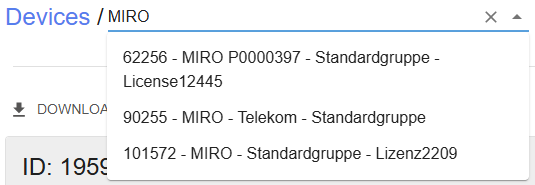
The details page of a group using the dropdown list Groups. The selection can be narrowed down by entering a search string. |
|
The timestamp indicates the last update of the device list in the table. A click on updates the list. |
|
New groups can be added using the + Add group button. This opens the respective dialog. |
|


The visible columns of the list can be set by a click on Columns. A Filter enables to filter the list for the desired content. Changes to columns and applied filters will be reset the next time the page is loaded.
Export allows to export the visible content of the list after applying the filters to a CSV file (saved in the browser's download directory) or to print it. The name of the CSV file contains the time at which the data was generated and does not necessarily correspond to the time of export.
When a string is entered in the Search field, the list is narrowed down to those entries that contain that string in the ID or Name parameter.
Depending on the configuration of the visible columns, the table contains the following columns:
The ID column shows the unique identification number for this group. This identifier cannot be changed, to ensure consistent identification even if the group’s name is changed.
The Name column displays the name of this group.
The Internal connection column shows whether connections between the devices in this group are Allowed or Denied.
The Connections from column indicates from which other groups connections to this group are defined.
The Connections to column indicates to which other groups connections from this group are defined.
The Networks column indicates how many different networks are included in this group.