Note regarding the multi-factor authentication (MFA) using TOTP!
The icom Connectivity Suite uses multi-factor authentication for different functions:
Please also note our FAQs regarding user management!
The FAQs frequently asked questions regarding registration and management of an account for the icom Connectivity Suite.
The icom Connectivity Suite portal has a user management feature. The Users page lists all users assigned to this account in a table. Additional users with different rights can be invited here as well.
The user information opens when you select a user on the Users page. Detailed information about the selected user is displayed here.
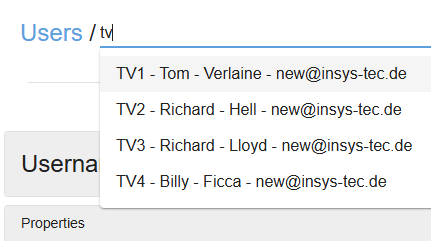
The detail information page of an user can be opened using the dropdown list Users. The selection can be narrowed down by entering a search string. |
|
The timestamp indicates the last update of the user list in the table. A click on updates the list. |
|
New users can be invited using the + Invite user button. This opens the respective dialog. |
|

The visible columns of the list can be set by a click on Columns. A Filter enables to filter the list for the desired content. Changes to columns and applied filters will be reset the next time the page is loaded.
Export allows to export the visible content of the list after applying the filters to a CSV file (saved in the browser's download directory) or to print it. The name of the CSV file contains the time at which the data was generated and does not necessarily correspond to the time of export.
When a string is entered in the Search field, the list is filtered to show only those entries that contain that string in the username, first name, last name, e-mail, or role fields.
Depending on the configuration of the visible columns, the table contains the following columns:
The User name column indicates the user name specified for this user.
The First name column indicates the first name specified for this user.
The Last name column indicates the last name specified for this user.
The E-mail column indicates the e-mail address specified for this user. All correspondence with this user takes place via this address.
The Role column indicates the user role assigned to this user.
The Authentication column indicates the authentication method configured for this user:
Basic: The user logs in to the portal using their username and password.
Multi-factor: The user authenticates themselves on the portal using their username, password and a time-based one-time password (TOTP).
The User status column shows the current status of this user:
Invited: The user has been invited but has not yet accepted the invitation.
Pending: The user has been invited, has accepted the invitation, but has not yet been approved by the admin.
Active: The user has been invited, has accepted the invitation and has been approved by the admin. Only active users can log in to the portal.
Expired: The user has been invited, has not yet accepted the invitation, and the invitation link has expired (after 8 hours).